
Introduction
A Virtual Private Server (VPS) gives small businesses more control over their hosting environment, better resource isolation, and greater flexibility than many basic hosting solutions. However, having your own server also means taking responsibility for its security.
An unsecured VPS can expose your business website, customer information, databases, applications, and other important files to cyber threats. Attackers may exploit weak passwords, outdated software, exposed services, or incorrectly configured server settings.
For small businesses, a security incident can cause more than temporary downtime. It can interrupt sales, damage customer trust, expose sensitive information, and create unexpected recovery costs.
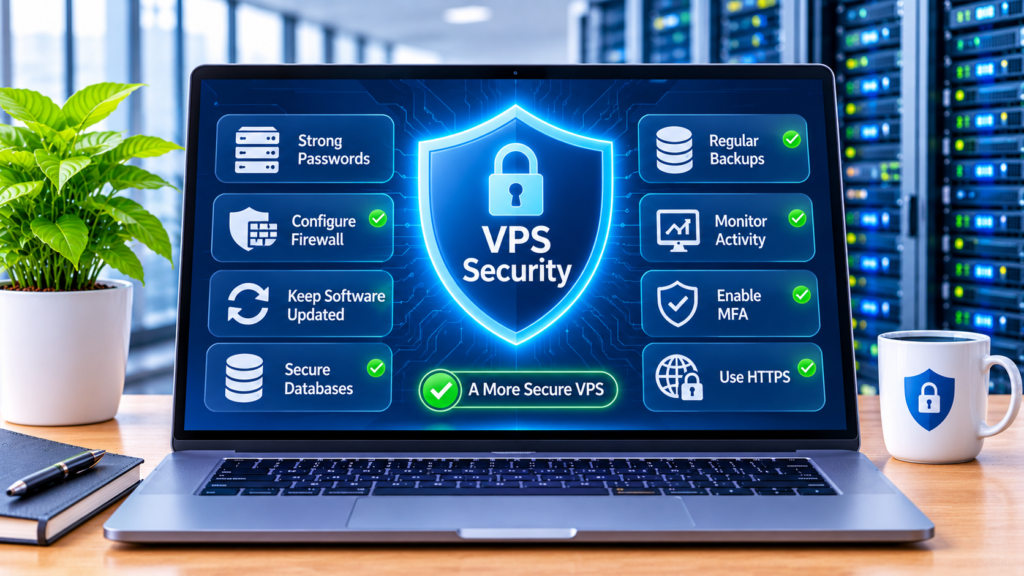
The good news is that protecting a VPS does not always require an expensive security team. By following a structured VPS hosting security checklist, business owners and administrators can reduce common risks and build a safer hosting environment.
This guide explains the essential steps to secure a VPS, from initial server configuration to ongoing monitoring and backup management.
What Is VPS Hosting Security?
VPS hosting security refers to the practices, tools, and configurations used to protect a Virtual Private Server from unauthorized access, malware, data theft, service disruption, and other cyber threats.
A VPS operates as a virtual server with its own operating system, allocated resources, applications, and configuration. Although the hosting provider manages the underlying physical infrastructure, customers are generally responsible for securing many aspects of their individual server.
Depending on the hosting arrangement, VPS security responsibilities may include:
- Securing administrator accounts.
- Configuring SSH access.
- Installing operating system updates.
- Managing firewall rules.
- Protecting websites and databases.
- Monitoring suspicious activity.
- Creating regular backups.
- Controlling user permissions.
The exact division of responsibility depends on whether the VPS is managed or unmanaged and on the services included in the hosting plan.
Why VPS Security Matters for Small Businesses
Small businesses increasingly depend on websites, online stores, customer portals, databases, and cloud-based applications. These systems often contain valuable information that must remain protected.
A weakly secured VPS can become an entry point for attackers.
Here are some reasons why server security should be a priority.
1. Protect Customer Information
Business websites may collect customer names, email addresses, order details, and other personal information.
Strong server security helps reduce the risk of unauthorized access to this information.
2. Prevent Website Downtime
Malware, unauthorized changes, and attacks against exposed services can interrupt website availability.
A secure server configuration helps reduce avoidable downtime and supports business continuity.
3. Protect Business Reputation
Customers expect businesses to handle their information responsibly. A security incident can damage confidence and make customers less willing to use your services.
4. Reduce Recovery Costs
Recovering from a compromised server may involve restoring backups, rebuilding applications, investigating the incident, and repairing damaged systems.
Preventive security measures can reduce the likelihood and impact of these problems.
5. Support Business Growth
As a company adds applications, employees, customers, and data, its server environment becomes more important.
A consistent security strategy helps businesses expand without ignoring basic protection requirements.
VPS Hosting Security Checklist
The following checklist covers the most important areas to review when securing a VPS.
1. Change Default Login Credentials
One of the first steps after deploying a VPS is securing its login credentials.
Some hosting environments provide initial access details or default accounts. Leaving weak or predictable credentials in place creates an unnecessary security risk.
Follow these practices:
- Change default passwords immediately.
- Use long, unique passwords.
- Avoid using the same password across multiple services.
- Never share administrator credentials through unsecured messages.
- Store credentials in a reputable password manager.
- Remove unused accounts.
Avoid passwords based on your business name, website address, birthday, or other information that could be guessed.
For administrator accounts, use a unique password that is not used anywhere else.
2. Secure SSH Access
Secure Shell (SSH) is commonly used to administer Linux VPS environments remotely.
Because SSH can provide powerful server access, it should be configured carefully.
Recommended security practices include:
- Use SSH keys instead of password-based authentication where possible.
- Disable direct root login when an alternative administrative account is configured.
- Restrict SSH access to trusted IP addresses when practical.
- Use strong passphrases to protect private SSH keys.
- Remove old or unused SSH keys.
- Review authentication logs regularly.
SSH key authentication can provide stronger protection than relying only on passwords, especially when private keys are properly secured.
Do not disable password authentication until you have confirmed that SSH key access works correctly. Otherwise, you may lock yourself out of your server.
3. Configure a Firewall
A firewall controls which network connections are allowed to reach your VPS.
Without appropriate firewall rules, unnecessary services may remain accessible from the internet.
A basic firewall strategy should:
- Allow only required network ports.
- Restrict administrative access.
- Permit web traffic on the ports used by your website.
- Block unused services.
- Review firewall rules after installing new applications.
- Remove unnecessary access permissions.
For example, a typical web server may need HTTP and HTTPS access, while SSH should be restricted as much as possible.
The exact ports depend on your operating system, applications, and server configuration.
Important: Before changing firewall rules, confirm that you are not blocking the connection you need to administer the server.
4. Keep the Operating System Updated
Outdated operating systems may contain known security vulnerabilities.
Attackers frequently look for systems that have not installed available security patches.
To reduce this risk:
- Install operating system security updates regularly.
- Review update notifications.
- Remove unsupported software.
- Use an operating system version that still receives security maintenance.
- Test important updates before applying them to critical production systems when possible.
You can also configure automatic security updates where appropriate.
However, automatic updates should be monitored. Important applications may require compatibility checks or controlled maintenance windows.
5. Update Applications and Server Software
Securing the operating system is only one part of VPS protection.
Your server may also run web servers, databases, control panels, programming languages, content management systems, and other applications.
Every outdated component can introduce potential vulnerabilities.
Regularly update:
- Web server software such as Nginx or Apache.
- Database management systems.
- PHP and other programming environments.
- WordPress and its extensions.
- Control panels.
- Server management tools.
- Installed applications and dependencies.
Remove software that is no longer needed.
The fewer unnecessary services running on your VPS, the easier it becomes to maintain and secure the environment.
6. Install and Maintain an SSL/TLS Certificate
An SSL/TLS certificate enables encrypted HTTPS connections between visitors and your website.
This is particularly important for websites that handle login details, contact forms, customer information, or online transactions.
Make sure that:
- Your website uses HTTPS.
- The certificate is valid and not expired.
- HTTP traffic redirects to HTTPS where appropriate.
- All important pages load securely.
- Mixed-content warnings are resolved.
- Certificate renewal is configured and monitored.
HTTPS helps protect data while it travels between the visitor’s browser and your server.
It does not, by itself, protect a website against malware, weak passwords, or compromised applications. It should be one part of a broader security strategy.
7. Create Regular VPS Backups
Backups are essential because even a well-secured server can experience hardware failures, accidental deletion, software problems, or successful cyberattacks.
A reliable backup strategy should include:
- Regular website backups.
- Database backups.
- Important configuration files.
- Application data.
- Off-server backup storage.
- A documented restoration procedure.
For many small businesses, daily backups are a useful starting point. However, the right frequency depends on how frequently the website or database changes.
For example, an online store processing orders throughout the day may need more frequent database backups than a simple informational website.
Remember that a backup is only useful if it can be restored.
Test restoration procedures periodically to confirm that your files and databases can be recovered successfully.
8. Protect Databases and Sensitive Files
Databases often contain valuable business and customer information. They should never be exposed unnecessarily.
Use these precautions:
- Do not expose database ports publicly unless absolutely necessary.
- Use strong database passwords.
- Create separate database accounts for different applications.
- Grant only the permissions each account needs.
- Keep database software updated.
- Back up databases regularly.
- Protect configuration files containing credentials.
Avoid giving every application full database administrator privileges.
The principle of least privilege means that each user or application should receive only the access required to perform its tasks.
This limits the potential damage if an account or application is compromised.
9. Use Strong User Permissions
Not everyone who works with your website needs full server administrator access.
Giving excessive permissions to employees, developers, or applications increases the impact of compromised accounts and accidental mistakes.
A better approach is to:
- Create individual user accounts.
- Assign permissions according to responsibilities.
- Avoid sharing administrator accounts.
- Remove access when employees or contractors leave.
- Review user permissions periodically.
- Restrict access to sensitive directories.
For example, a content editor may need access to a website’s content management system but does not necessarily need root access to the VPS.
10. Install Security Monitoring Tools
Monitoring helps identify unusual activity before it develops into a larger incident.
Depending on your operating system and requirements, you can use security tools to monitor:
- Failed login attempts.
- Unusual network connections.
- CPU and memory usage.
- Unexpected processes.
- Changes to important files.
- Suspicious authentication activity.
- Available disk space.
Some Linux tools can also help block repeated unauthorized login attempts.
For example, Fail2ban can monitor certain log files and apply temporary blocks when repeated suspicious authentication attempts are detected.
Monitoring should be reviewed regularly. Installing a security tool without checking its alerts does not provide much protection.
11. Protect Your Website Against Common Attacks
Your VPS may be secure at the operating system level while the website itself remains vulnerable.
Web applications can be targeted through:
- SQL injection.
- Cross-site scripting (XSS).
- Brute-force login attempts.
- Malicious file uploads.
- Vulnerable plugins and themes.
- Weak authentication.
- Poorly configured permissions.
To reduce these risks:
- Keep your website software updated.
- Use trusted plugins and themes.
- Remove unused extensions.
- Validate user input.
- Apply secure authentication practices.
- Limit file upload permissions.
- Use a web application firewall when appropriate.
- Monitor website logs for suspicious requests.
If your business uses WordPress, pay particular attention to plugin and theme updates. A vulnerable extension can put the entire website at risk.
12. Enable Multi-Factor Authentication
Multi-factor authentication (MFA) adds another verification step when users sign in.
Instead of relying only on a password, the login process may require an authenticator application, security key, or another approved verification method.
Enable MFA for:
- Hosting provider accounts.
- Control panels.
- WordPress administrator accounts.
- Business email accounts.
- Password managers.
- Other services that support it.
MFA is especially important for accounts with access to billing, domain settings, server management, or customer information.
Even if a password is stolen, MFA can make unauthorized access more difficult.
13. Monitor Server Logs and Activity
Server logs provide useful information about how your VPS is being used and whether unusual activity is occurring.
Regular log reviews can help identify:
- Repeated failed login attempts.
- Unexpected administrator activity.
- Application errors.
- Suspicious requests.
- Unusual traffic patterns.
- Unexpected service restarts.
You should know where your operating system and applications store their logs.
For Linux servers, common log locations include /var/log/, although exact files depend on the distribution and installed services.
If you discover suspicious activity, investigate it promptly rather than deleting logs or ignoring repeated warnings.
14. Protect Your VPS Against DDoS Attacks
Distributed Denial-of-Service (DDoS) attacks attempt to overwhelm a server or network with excessive traffic.
A successful attack can make a website or application unavailable to legitimate visitors.
Consider these protective measures:
- Ask your hosting provider what DDoS protection is included.
- Use a reputable CDN or traffic protection service when appropriate.
- Monitor unusual traffic increases.
- Configure rate limiting where suitable.
- Keep unnecessary network services closed.
- Establish a response plan for service disruptions.
A VPS firewall alone may not be sufficient to handle large-scale DDoS attacks.
Protection often depends on the hosting provider’s network infrastructure and additional traffic filtering services.
15. Review Hosting Provider Security Features
VPS security also depends on the infrastructure and services supplied by your hosting provider.
Before choosing a VPS plan, review the provider’s security-related features and responsibilities.
Important questions include:
- Does the provider offer DDoS protection?
- Are backups included, optional, or managed separately?
- Is server monitoring available?
- Does the provider offer managed security assistance?
- What support is available during security incidents?
- Are data center locations clearly specified?
- What recovery options are available after a server failure?
Do not assume that every VPS plan includes automatic backups, malware removal, or complete server management.
Read the service details carefully so you understand what you must configure and maintain yourself.
VPS Security Checklist: Quick Comparison
| Security Area | Recommended Action | Main Benefit |
|---|---|---|
| Login credentials | Use strong, unique passwords | Reduces unauthorized access |
| SSH | Prefer key-based authentication | Strengthens remote access |
| Firewall | Allow only required ports | Limits exposed services |
| Operating system | Install security updates | Fixes known vulnerabilities |
| Applications | Update software regularly | Reduces application risks |
| SSL/TLS | Enable HTTPS | Encrypts website connections |
| Backups | Store regular off-server copies | Supports data recovery |
| Databases | Restrict access and permissions | Protects sensitive information |
| User accounts | Apply least privilege | Limits unnecessary access |
| Monitoring | Review alerts and logs | Helps detect suspicious activity |
| MFA | Enable additional verification | Strengthens account protection |
| DDoS protection | Check provider and network options | Helps maintain availability |
Best Practices for VPS Hosting Security
Following a checklist is a good start, but effective security requires ongoing attention.
Here are some best practices for small businesses.
1. Follow a Regular Maintenance Schedule
Create a schedule for reviewing updates, backups, firewall rules, user accounts, and security alerts.
A consistent routine helps prevent important tasks from being forgotten.
2. Use the Principle of Least Privilege
Give users and applications only the permissions they need.
Avoid using administrator accounts for routine activities.
3. Keep Backups Separate From the VPS
Store backup copies outside the primary server.
This can help protect recovery data if the VPS becomes compromised or unavailable.
4. Test Your Recovery Plan
Do not wait for a serious incident to discover that your backups cannot be restored.
Perform periodic recovery tests and document the steps.
5. Secure Your Hosting Account
Your hosting provider account may allow someone to restart, rebuild, access, or cancel your VPS.
Protect it with a unique password and MFA whenever available.
6. Document Your Server Configuration
Keep a secure record of important server settings, installed services, firewall rules, and recovery procedures.
This makes troubleshooting and server restoration easier.
7. Review Security as Your Business Grows
New employees, applications, websites, and integrations can introduce additional risks.
Review your security requirements whenever your hosting environment changes.
Common VPS Security Mistakes to Avoid
Even businesses that understand the importance of security can make mistakes.
Watch out for these common problems:
1. Using Weak Passwords
Simple or reused passwords make accounts easier to compromise.
Use strong, unique credentials and enable MFA wherever possible.
2. Leaving Unused Ports Open
Unnecessary open ports increase the number of services exposed to the internet.
Review firewall rules and close ports that are not required.
3. Ignoring Software Updates
Delaying security patches can leave known vulnerabilities unaddressed.
Establish a regular update process.
4. Relying Only on SSL
HTTPS encrypts connections, but it does not prevent every type of cyberattack.
You still need secure authentication, updates, monitoring, and backups.
5. Keeping Backups on the Same Server Only
If the VPS is compromised or becomes unavailable, local backups may also become inaccessible.
Maintain separate backup copies.
6. Giving Everyone Administrator Access
Excessive privileges increase the potential impact of compromised accounts and accidental changes.
Use individual accounts with limited permissions.
7. Never Testing Backups
A backup that cannot be restored offers little practical protection.
Test your recovery process regularly.
8. Assuming the Hosting Provider Handles Everything
The provider may secure the physical infrastructure while the customer remains responsible for the operating system, applications, and server configuration.
Understand the responsibilities included in your hosting plan.
How to Choose a Secure VPS Hosting Provider
Choosing a VPS provider is an important part of your overall hosting security strategy.
The right provider should offer clear information about its infrastructure, support, and available security services.
Before purchasing, compare the following factors:
1. Infrastructure Reliability
Review the provider’s data center information, network infrastructure, and service availability commitments.
2. Backup Options
Check whether backups are included, available as an additional service, or must be configured independently.
3. DDoS Protection
Understand what protection is provided and whether additional services are available.
4. Management Options
Determine whether the VPS is managed or unmanaged and which administration tasks are included.
5. Technical Support
Check support availability and whether the team can assist with server-related issues.
6. Upgrade Flexibility
Choose a provider that allows you to increase resources as your website and business applications grow.
7. Transparent Pricing
Review the initial price, renewal cost, additional services, and any optional security features before committing.
Exploring OpenVista VPS Hosting
If you are looking for a VPS environment for your business website or applications, it is worth comparing the available hosting options and their management features.
You can explore the plans offered by OpenVista and review the available resources, pricing, and hosting services before deciding whether they match your requirements.
Explore OpenVista VPS Hosting Plans
Before purchasing, check the current plan specifications, backup arrangements, security options, support availability, and renewal terms. Make sure you understand which security tasks are your responsibility and which services are provided by the hosting company.
Affiliate Disclosure: This article contains an affiliate link. If you purchase through this link, we may earn a commission at no additional cost to you.
Frequently Asked Questions About VPS Hosting Security
1. Is VPS hosting secure for small businesses?
VPS hosting can provide a suitable environment for small businesses, but its security depends on server configuration, software maintenance, access controls, backups, and the hosting provider’s infrastructure.
2. How do I secure my VPS server?
Start by changing default credentials, securing SSH, configuring a firewall, installing updates, enabling HTTPS, creating off-server backups, and monitoring suspicious activity.
3. Is a firewall enough to protect a VPS?
No. A firewall helps control network access, but it does not replace software updates, strong authentication, malware protection, backups, or application security.
4. Should I disable root login on my VPS?
Disabling direct root SSH login is generally a good security practice once you have configured and tested another administrative account with the required privileges.
Make sure you have a working alternative before changing root access settings.
5. How often should I back up my VPS?
The right frequency depends on how often your data changes. Daily backups may be suitable for many business websites, while active online stores and databases may require more frequent backups.
6. Do I need SSL for my VPS website?
Yes, websites should use HTTPS with a valid SSL/TLS certificate. This encrypts connections between visitors and the website, although additional security measures are still necessary.
7. What is the difference between managed and unmanaged VPS security?
With an unmanaged VPS, the customer generally handles most server administration and security configuration. A managed VPS may include assistance with maintenance, updates, monitoring, or other administration tasks, depending on the provider’s service agreement.
8. Can a VPS be hacked?
Yes. Like any internet-connected server, a VPS can be compromised through weak credentials, vulnerable applications, outdated software, or incorrect configuration.
Following security best practices helps reduce these risks.
9. What should I do if my VPS is compromised?
If you suspect a security breach, restrict unauthorized access, contact your hosting provider when necessary, preserve relevant logs, investigate the cause, and restore from a known clean backup if appropriate.
Change affected credentials and review the server before returning it to production.
10. Does VPS hosting automatically include DDoS protection?
Not always. DDoS protection depends on the provider and the selected hosting plan. Check the service specifications before purchasing.
Conclusion
VPS hosting gives small businesses greater control over their online infrastructure, but that control comes with important security responsibilities.
Protecting your server requires more than installing a firewall or enabling HTTPS. It involves securing login access, maintaining updated software, limiting permissions, protecting databases, monitoring activity, and keeping reliable backups.
By following this VPS hosting security checklist, small businesses can reduce common server risks and create a stronger foundation for their websites and applications.
Security is not a one-time task. Review your server regularly, test your recovery procedures, and update your protection measures as your business grows. A well-maintained VPS can help support a more reliable and secure online presence.